
Reading → your own notes → Markdown
Export reading notes to Obsidian on iPhone
Keep your thoughts and their source passages together, without copying every note by hand.
The simplest route is to save your reading notes as a .md file, place it inside your Obsidian vault, then open it in Obsidian. This guide uses Foliomere for reading and note-taking, and the iPhone Files app for the handoff. You do not need a community plugin for this file-copy workflow.
Start with the right source. This exports notes you wrote inside Foliomere. It does not import existing Apple Books, Kindle, or WeRead annotations. A highlight without your own note, or a bookmark, stays inside its book and is not included in Study export.
1. Prepare one note and your vault
Start with one DRM-free EPUB you can legitimately use, already imported into Foliomere. Open the book, select a short passage, choose Note, write a sentence in your own words, and tap Save. Return to Study → Notes and open that book's notebook to check that your writing is there.
A useful first note answers a small question: What does this passage change about how I would act? For example: “Before checking the text, write down the author's main claim from memory.” The idea is to export your thinking, not a second copy of the book.
In Obsidian, create or open the vault where you want to keep these notes. A vault is a folder of files. If you use iCloud, create it through Obsidian with Store in iCloud enabled, then check its location in Files: iCloud Drive → Obsidian → Your Vault. Use the Obsidian app folder, not a similarly named folder elsewhere. See Obsidian's iCloud setup instructions.
Prefer to keep the files on this iPhone? Use your existing local Obsidian vault under On My iPhone → Obsidian if it is visible in Files. Do not create an arbitrary folder in Downloads and assume Obsidian will treat it as your vault.
2. Save Markdown and open it in Obsidian
This single-file export does not require Foliomere Pro. Start with one book; export your whole Study collection once you have checked the result.
- Choose the scope. In Study, open a book's notebook and tap the top-right export icon, labeled Export this book. To export every notebook into one file instead, stay on the main Study → Notes screen, tap its export icon, and choose Save Markdown.
- Choose a safe filename. For a one-time snapshot, use a name such as
Reading Notes 2026-09-20.md. Save it into your vault or a subfolder such asReading Inbox. Avoid replacing a file you have already edited. - If your vault is not offered in the save picker, save to a temporary location you can find, such as Downloads. In Files, locate the saved
.mdfile and copy or move it into your actual vault folder. If Files cannot access that vault, use a vault location supported by Obsidian rather than guessing a hidden path. Apple's Files guide explains the available file actions. - Open Obsidian and check the note. Select the same vault, find the exported filename in its file explorer, and open it. Confirm that your note and source excerpt are both present before repeating the process for more books. Simply tapping a file in Files may open a preview rather than add it to Obsidian.
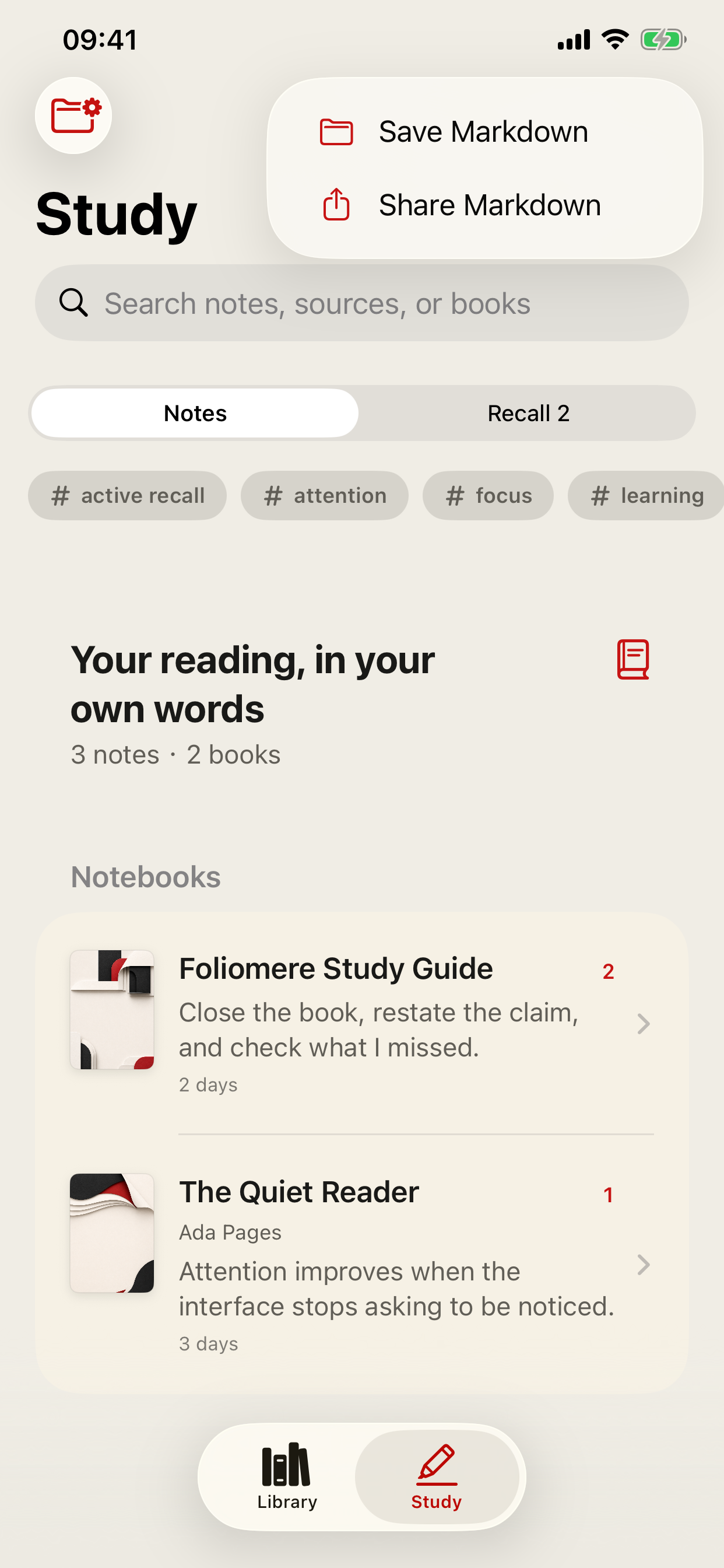
Search filters do not narrow the all-books export. Searching Study or selecting tags changes the visible list, but the main export still includes all Study notebooks. Open an individual notebook when you only want that book.
What the file contains
The ordinary Markdown export groups notes under book titles. It includes your writing, available author and format information, reading progress, the note date, any tags you added, and the source excerpt when present. Export metadata appears at the top. It is not a full-book export or a backup of your original documents.
Here is an abbreviated, illustrative example of the body. It omits the export metadata and uses invented sample text:
## My Reading Experiment

_EPUB · 1 note_

### 1 · 35% · 2026-09-20

Before checking the text, write down the main claim
from memory. Then compare the two explanations.

> **Source**
> Close the source before you restate the idea.
The ordinary export does not create clickable links back to the exact position inside Foliomere. Keep the original book if you need to revisit it. Obsidian reads Markdown files directly; see its Markdown import guide.
Share Markdown opens the iOS share sheet with a Markdown file. Available destinations depend on the apps installed and the file types they accept. Saving or copying the file into your vault is the route described here; an Obsidian share-sheet shortcut is not required.
3. Keep one file per book with Study Files
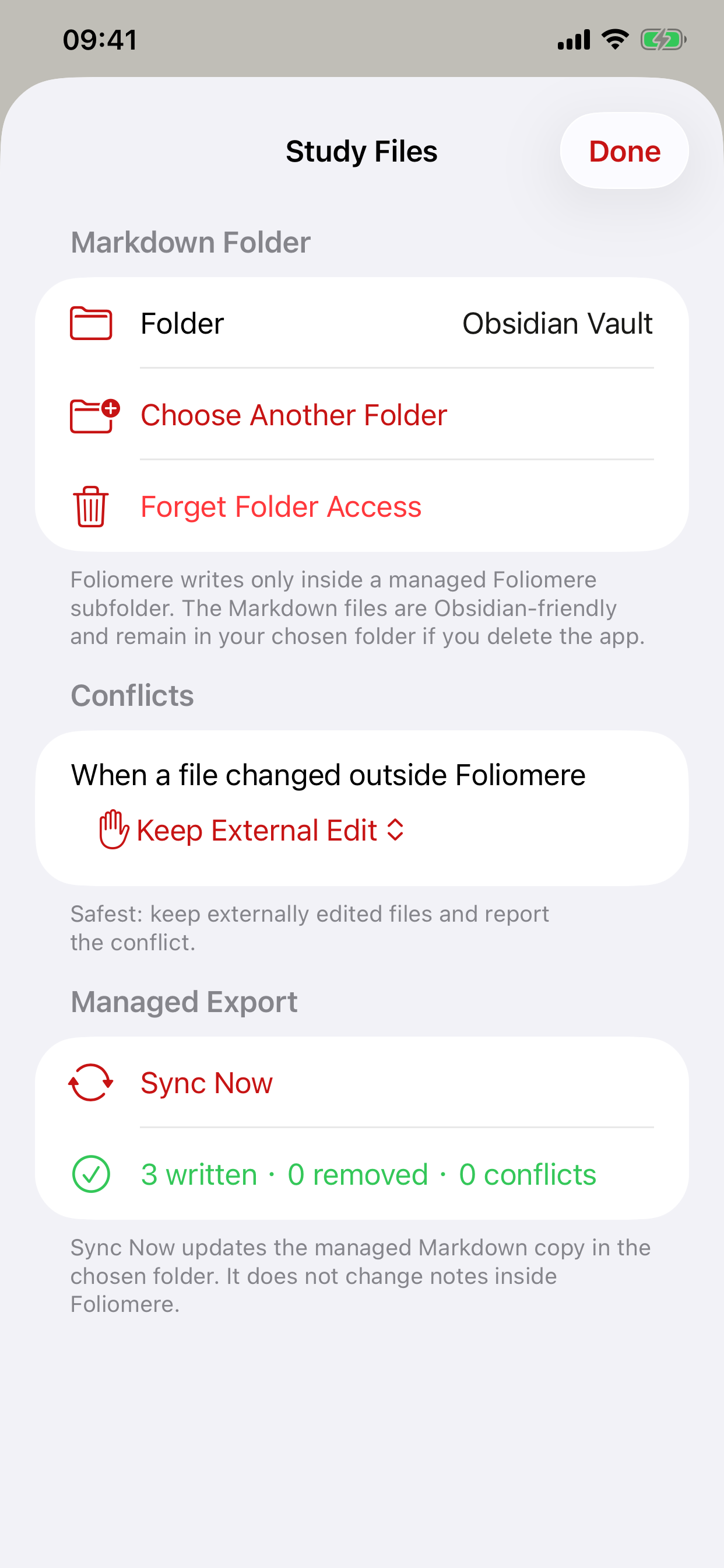
For repeated exports, Study Files is an optional Foliomere Pro feature. It writes a managed Markdown copy for each book's Study notes, plus an index, inside a folder you choose.
- From Study, tap the top-left folder-and-gear icon to open Study Files. If you do not have Pro, the app shows the Pro access screen. You can keep using the free single-file method above.
- Tap Choose Folder and select your accessible Obsidian vault folder. Foliomere creates its own
Foliomeresubfolder inside it. - Leave the conflict option set to Keep External Edit for the first run. Tap Sync Now and inspect the written-file and conflict counts.
- Open Obsidian. In your vault, open
Foliomere/Study Index.md, then follow a book link to its notes.
Your Vault/
└── Foliomere/
    ├── Study Index.md
    ├── Notes/
    │   └── Book Title--xxxxxxxx.md
    └── .foliomere-manifest.json
The suffix identifies the book; it is not literally xxxxxxxx. The hidden manifest lets Foliomere recognize files it manages. Leave it in place.
Understand the direction before editing
This is a manual, one-way operation: Foliomere → Markdown files. Changes made in Obsidian do not return to Foliomere. After writing more notes in Foliomere, run Sync Now again.
If you edited a managed file in Obsidian and Foliomere now has a different version, Keep External Edit keeps your edited file and reports a conflict. It does not merge the new notes into that file. Choose Write a Separate Copy if you want a timestamped Foliomere version to compare and merge yourself. Replace with Foliomere can overwrite your external edits; do not select it just to dismiss a warning.
For ongoing work, keep your longer synthesis in a separate Obsidian note outside the managed Foliomere folder, and link to the exported book notes. That separates your working document from the generated copy.
A managed copy is not a backup. A later export can remove previously managed, unchanged files that are no longer part of the current export. Keep independent dated copies outside the managed folder when you need an archive. Do not rely on this operation to back up the Foliomere library.
Using an iCloud vault may carry the exported files to your other Apple devices through iCloud. It does not synchronize Foliomere's books, reading progress, or internal notes. Obsidian also warns against using multiple sync services on the same vault. Follow your vault's existing sync setup.
If something is missing
“The export icon is disabled.”
Make sure you saved a note with your own text, rather than only a bookmark or highlight. Check Study → Notes. The main export is unavailable when there are no Study notes or an export is being prepared.
“I cannot find the file in Obsidian.”
Check the full destination in Files and the vault currently open in Obsidian. A file in Downloads is not in your vault. Keep the .md extension. For an iCloud vault, check that the file has finished downloading; folder visibility and permissions depend on the file provider.
“I have two copies of the same notes.”
Single-file exports are snapshots, not incremental imports. Saving each snapshot under a new name keeps multiple copies. Review them before deleting anything; use Study Files if a managed per-book copy better suits your routine.
“The latest note did not appear after Sync Now.”
Read the conflict report. An externally edited file may have been kept instead of updated. Also check folder access; if access changed, choose the folder again. Do not fix this by blindly overwriting files.
“Can I package the export as a ZIP?”
The basic export produces Markdown, not a ZIP. If you need a package, save the desired files in a separate folder and use Compress in Files. Keep this archive outside the managed folder. This packages exported notes, not the full reading library.
Your first-run check
- Your own sentence and its source excerpt both appear in Obsidian.
- You know whether you saved one book, all books in one file, or a managed per-book folder.
- No existing working note was overwritten.
- You know that edits do not travel back into Foliomere.
Try the handoff with one note
Read a passage, write one useful thought, and check it in your vault. Expand the routine only after that small handoff works for you.